
Hazard Setup
The basics of setting up the Zonr hardware.
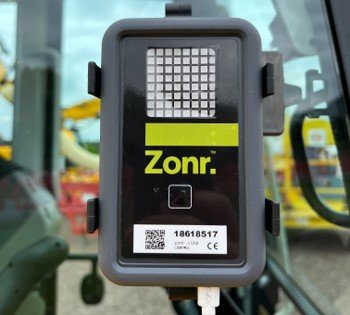
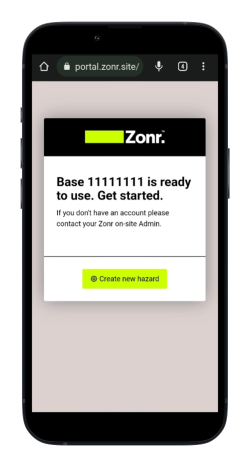
Click on the web link to the Zonr Portal
This banner link (portal.zonr.com) will appear when you have successfully scanned the QR code. Click on the link to be taken to the web page where you will be invited to 'Create new hazard’
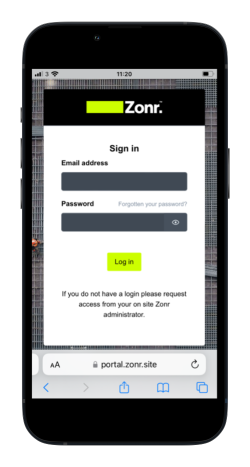
Sign In
On the Zonr site (portal.zonr.com) enter your email and password to sign in to your Zonr account.
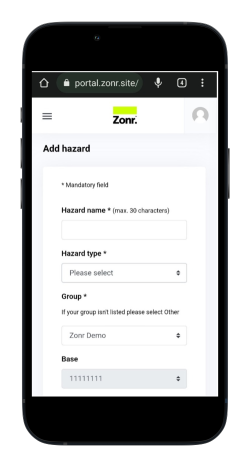
Input hazard information:
Hazard Name – input the name of the hazard, this could be the vehicle registration or plant equipment serial number
Hazard Type – choose from the drop-down list. If a relevant hazard type is not listed, please choose ‘Other’
Group – choose from drop-down list. If a relevant group is not listed, please choose ‘Other’
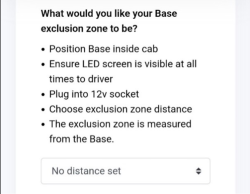
Choose Base exclusion zone (2m – 20m)
Position Base inside cab
Ensure LED screen is always visible to the driver / plant operator
Plug into 12v/24v socket
Choose the exclusion zone distance
The exclusion zone is measured from the Base
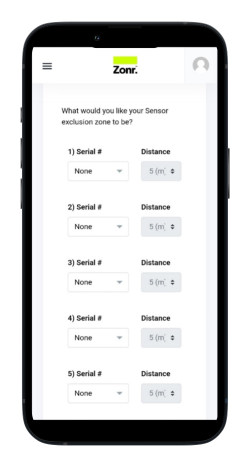
Choose whether you would like to assign Sensors.
Sensors are secondary detection points to the Base, providing extended and accurate exclusion zone coverage around your hazard.
Select the serial number of the Sensor from the drop-down list
Select the exclusion zone from the distance drop down (2m – 20m)
If you do not see your sensors in the drop-down list contact [email protected]
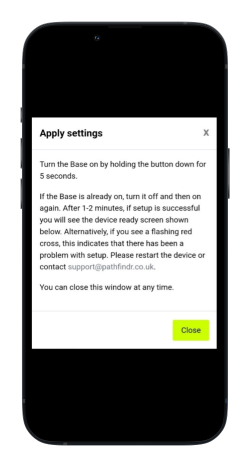
Apply Settings
Turn the Base on by holding the menu button down for 5 seconds
If the Base is already on, turn it off (by pressing the menu button twice until you see the power icon screen, then hold the button down for 5 seconds), and turn it on again.
After 1-2 minutes, if set-up is successful, you will see the device ready screen below
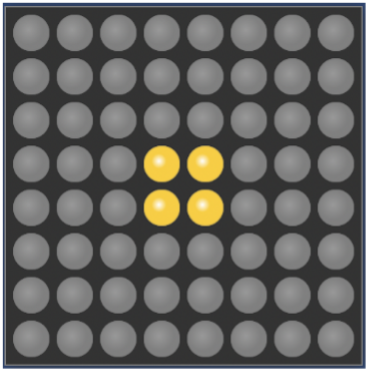
If you see a red flashing cross, there has been a problem with the set-up. This could be because there is no cellular connectivity in the area. You will need to try again in a different location – please contact [email protected] if you continue to experience connectivity issues.
Last updated