
Plant Operator
How to Become Operator
The Operator of the plant should wear a Tag. By wearing a Tag, the Operator will receive an audible and vibration alert on their arm when an incursion occurs in addition to the Base unit alerting. Operator mode is limited to one Tag wearer at a time.
To start this process, the person who is the plant Operator simply needs to walk into the cab, wearing their Tag.
The alarm of the Operator's Tag will trigger when entering the exclusion zone, this is expected.
Once inside the cab (or within 1.5m from the Base unit), the Operator will hear a triple beep from their Tag. This indicates their Tag has automatically switched into Operator mode successfully and their alarm will stop.
As the Tag has been successfully assigned as a ‘plant operator’, this incursion will be classified as an ‘approved incursion’.
The Base screen will now display an green square in the top right-hand corner, indicating that the Operator's Tag has been successfully assigned.
Once the operator exits the exclusion zone for 60 secs or more, the Tag is stripped of Operator status and the exclusion zone for that Tag is reinstated.
Power On Base
To power on the Base Unit, plug the USB cable into the 12v accessory power adaptor and insert into the Plant equipment's 12v port.
The Base unit should automatically power up when plugged in. If it doesn't, please verify the 12v power supply is working and wait for the unit to start. You can manually attempt to start the Base unit by holding the Menu button for 5 seconds.
If you see an orange flashing 'B' this means the Base unit is updating its software which takes 3-4 minutes. Once this is completed you need to power off the base and then power back on so it accepts the update
Control - Safe Mode
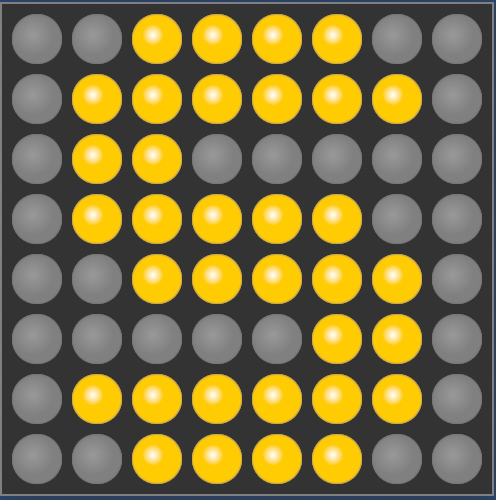
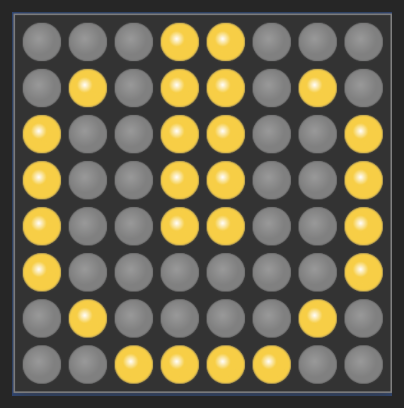
To enter Safe Mode, press the power button on your Base twice to reach the 'S' LED icon (pictured below).
Press and hold the button a third time to enter Safe Mode.
A flashing 'S' indicates Safe Mode is turned on, and it will remain in this state for 10 minutes or until the power button is pressed.
Control - Approve an Entry
Approving an incursion allows a Tag wearer to get permission from the Operator to enter an incursion zone and have it logged as an allowed incursion.
How to approve a Tag into an exclusion zone.
There may be instances when a person wearing a Tag needs to enter the exclusion zone.
To bypass the Zonr incursion alert, and avoid the incursion being logged as an incursion in the web portal, follow these steps:
Set up the base unit for approving an incursion:
The Plant Operator should be aware that someone wants to enter the exclusion zone and is prepared to approve the incursion.
To start the process, the Operator must press the power button once on the Base to reach the 'A' setting (approval mode).
Next, press and hold down the button on the Base unit for 3 seconds to start the approval mode (A). At this point, the A on the screen should start flashing, indicating it’s ready for the next step.
Signal to the worker to press their button once to get authorisation to enter.

Using the Tag to get approved:
The Tag user requesting entry should press their button. The Tag will also make a triple beep, indicating that it has been approved to enter the exclusion zone.
The Base unit screen should also show a tick, confirming the approval has been successful.
This process can be repeated with multiple Tags to approve multiple entries into the exclusion zone. This process has to be done on a Tag by Tag basis; simultaneous approvals are not possible.
When an approved Tag enters the exclusion zone, a larger orange square will display indicating that there is an approved incursion currently in progress.

Once the person with the Tag exits the exclusion zone for 60 secs or more, the exclusion zone for that Tag is reinstated.
Control - Pairing Machine Controller
Purpose:
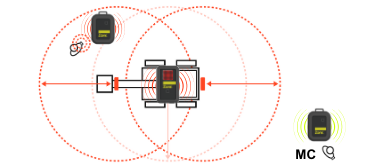
MC Mode is a specialised operating mode designed for Machine Controllers (MCs) deployed on-site. It allows MCs to operate within their Hazard/Vehicle's exclusion zone without receiving incursion alerts while receiving unique alerts to incursions (by other Tags) against the Hazard/Vehicle they are controlling.
Exclusion Zone Flexibility:
MC Tags can operate within their Base's exclusion zone without alerts.
Incursion Alerts:
MCs receive alerts for incursions against their assigned hazard or vehicle.
Normal Tag Function:
MC tags operate as standard tags around other hazards or vehicles.
Mode Activation:
Machine Controller Mode is activated by finding the 'M' in the Base menu:
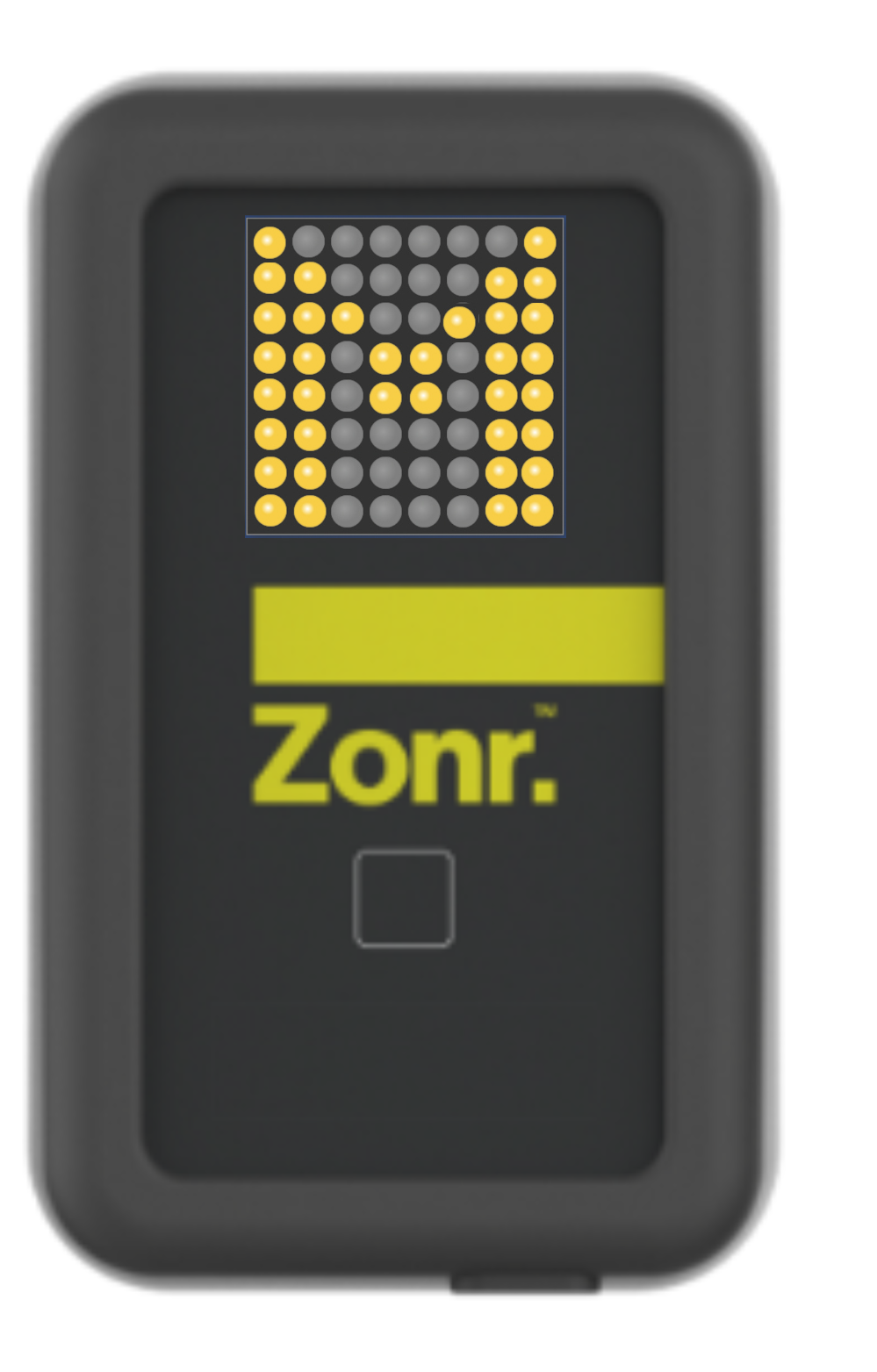
Long hold the Base button until the 'M' Flashes
The Tag wishing to be assigned as MC Tag will now press the button on their Tag
A triple beep and tick on the Base screen confirms them as MC Tag
The MC Tag is now free to enter the Proximity zone without alerting
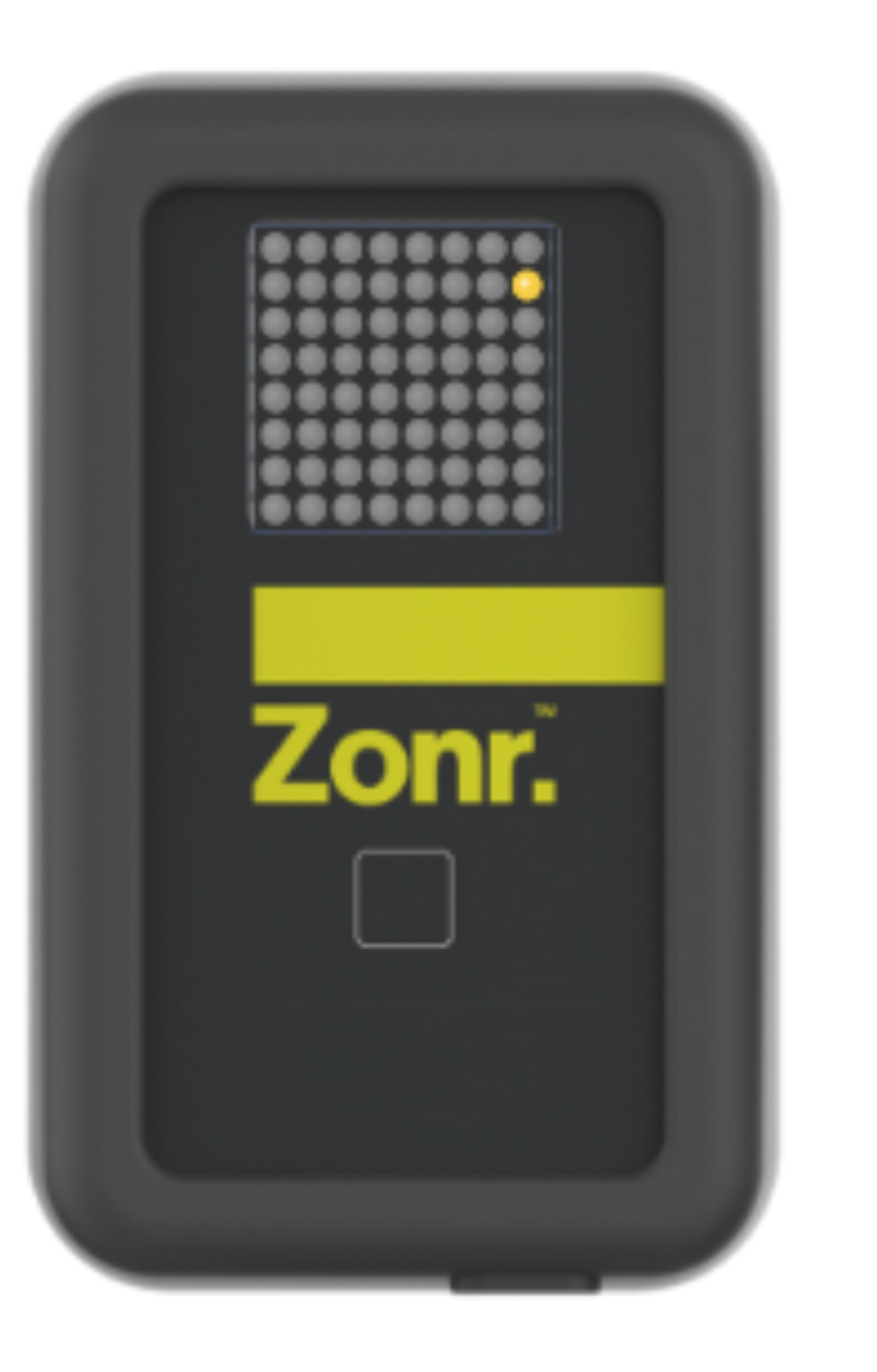
An orange light in the top right corner of the Base screen show that MC Mode is activated.
Last updated